Last updated: April 2026
Remove Virus and Malware from Your PC: Complete Guide
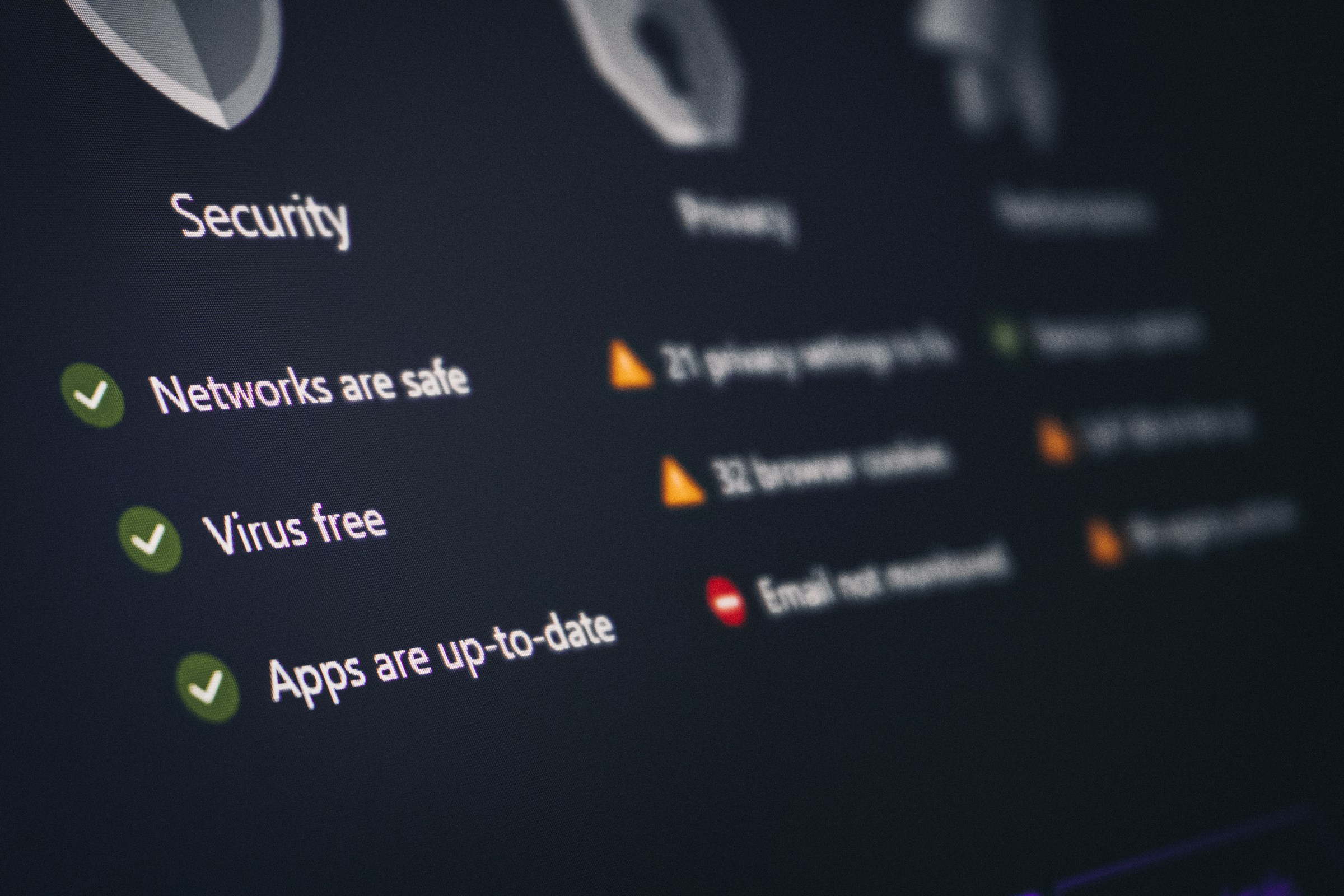
Think you have a virus on your PC? This guide shows you how to remove viruses and malware for free using Windows Defender, Safe Mode, and Malwarebytes. Follow the five steps below and your PC will be clean again. Works for Windows 10 and Windows 11.
Signs Your PC Is Infected
Viruses and malware can show themselves in several ways. Here are the most common signs:
- Your PC has suddenly become much slower than usual. (If slowness is the only symptom, check our guide to 8 solutions for a slow PC first — viruses are often not the cause.)
- Your browser opens pages you didn't ask for, or has acquired new toolbars.
- Pop-up windows appear constantly, even outside the browser.
- Programs crash without reason.
- The fan runs at full speed even when you're not doing anything intensive.
- Your antivirus has been disabled without you doing it.
- Unknown programs have appeared in your program list.
If you have one or more of these symptoms, you may have a virus on your PC. Don't wait — the longer malware is allowed to run, the more damage it can do. Follow the steps below to remove viruses and malware yourself.
Step 1: Disconnect from the Internet
The first thing you do is disconnect your PC from the network. Unplug the network cable or turn off WiFi. This prevents the malware from sending data out, downloading more malicious code, or spreading to other machines on the network.
Step 2: Run Windows Security
Windows has a built-in antivirus program called Microsoft Defender. It's actually quite good and is updated regularly. Here's how to use it:
- Open Windows Security from the Start menu.
- Go to "Virus & threat protection".
- Click on "Scan options".
- Select "Full scan" and click "Scan now".
A full scan typically takes 30 to 60 minutes. Let it run to completion. If it finds something, follow the instructions to remove or quarantine it. Microsoft's guide to Windows Security explains all the features in detail.
Step 3: Boot into Safe Mode
Some types of malware can hide or block antivirus programs in normal mode. Safe Mode starts Windows with only the bare essentials, making it easier to detect and remove malware.
How to boot into Safe Mode in Windows 11:
- Hold the Shift key and click "Restart" in the Start menu.
- Choose "Troubleshoot", then "Advanced options", then "Startup Settings".
- Click "Restart" and select "Safe Mode with Networking" (number 5).
In Safe Mode you can run Windows Security again. Many infections that hide in normal mode become visible here.
Step 4: Use a Dedicated Malware Scanner
Sometimes Windows Defender doesn't catch everything. In that case, you should run an additional scan with a different tool. Microsoft Safety Scanner is a free tool from Microsoft that you can download and run without permanently installing it. It's designed to find threats that your regular antivirus may have missed.
Malwarebytes Free is another good option. It's free for one-time scans and often catches adware and potentially unwanted programs that other tools overlook.
Step 5: Clean Up Manually
After scanning, go through the list of installed programs. Go to Settings, Apps, Installed apps. Look for programs you don't recognise or don't remember installing. Uninstall them.
Also check your browser's extensions. Go to settings in Chrome, Edge or Firefox and review the extensions. Remove anything you don't actively use and didn't install yourself.
When Should You Reinstall Windows?
If your PC is still behaving strangely after thorough scanning and cleanup, a clean installation of Windows may be necessary. Some rootkits and advanced malware are extremely difficult to remove completely. A clean installation guarantees you a fresh start.
Back up your files first. Use the Windows feature "Reset this PC" under Settings, System, Recovery. Choose "Remove everything" for a complete wipe.
Prevent Future Infections
Prevention is much easier than removal. Here are the habits you should have:
- Keep Windows and all programs updated. Updates patch security vulnerabilities.
- Don't download programs from unknown websites. Always use the manufacturer's official site.
- Be careful with email attachments, especially from unknown senders.
- Use an ad blocker in your browser. Many infections spread through malicious ads.
- Enable two-factor authentication on important accounts.
- Take regular backups of important files.
NorSIS has good resources on malware with up-to-date advice for individuals.
Need Help?
Some infections are difficult to handle on your own, especially ransomware that encrypts your files. If you can't remove the virus from your PC by yourself, professional computer help from Datafolka can assist with malware removal and recovery.
Summary
Disconnect from the internet. Run a full scan with Windows Security. Boot into Safe Mode if the regular scan doesn't help. Use an additional scanner such as Malwarebytes or Microsoft Safety Scanner. Clean up programs and browser extensions. And above all: keep everything updated and be critical of what you download.