Last updated: September 2026
Poor WiFi Coverage at Home? 10 Fixes That Actually Work

Poor WiFi coverage at home is almost always caused by incorrect router placement, the wrong channel, or too many devices on the same frequency band. You rarely need new equipment. Here are ten steps that give a noticeable improvement, and you can do most of them yourself in under half an hour.
1. Move your router to the right spot
Placement is everything. Your router should be positioned centrally in your home, ideally on the floor you use most. Avoid hiding it in a cupboard, behind the TV, or in the basement. WiFi signals are weakened by walls, floors, and large metal objects.
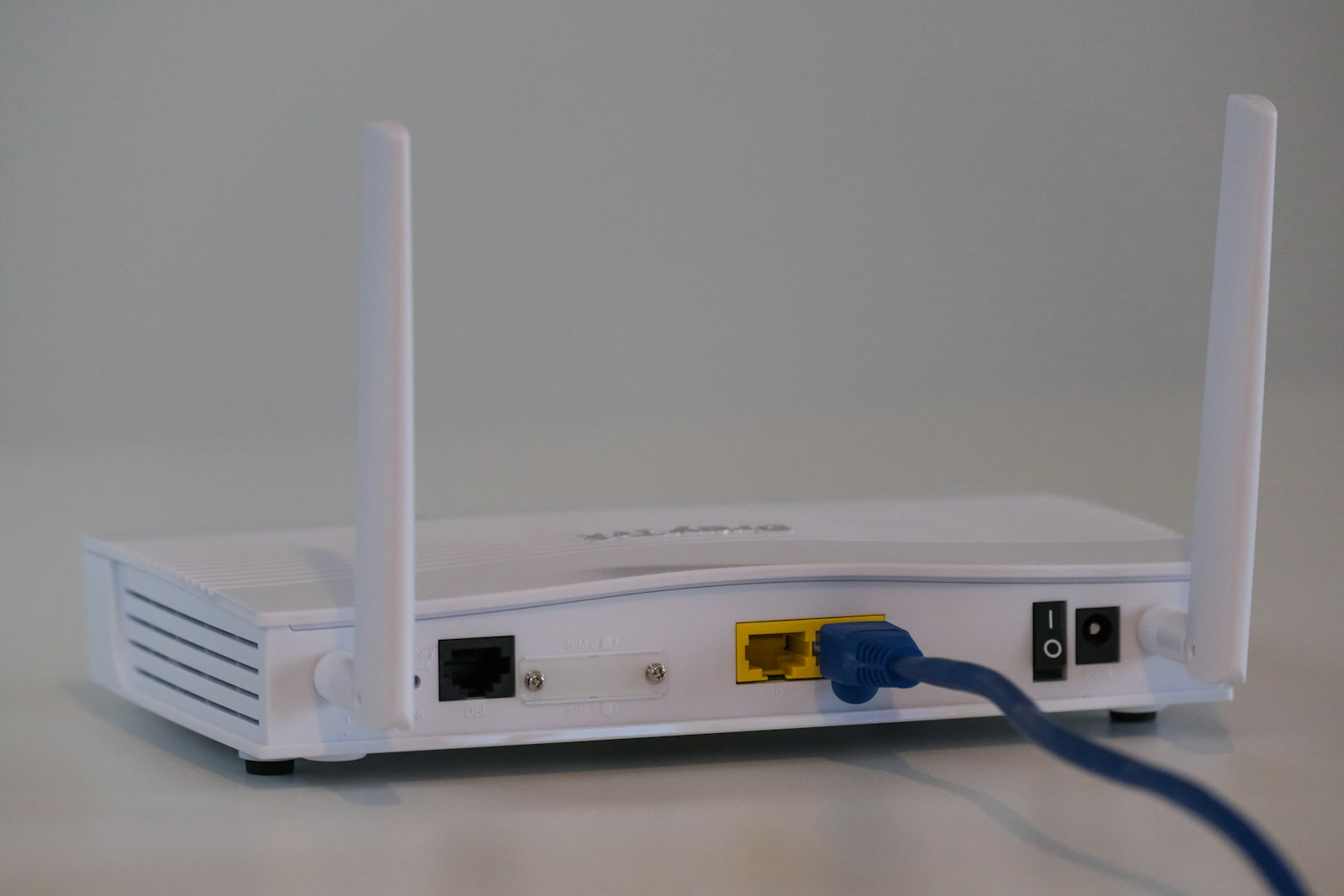
Place the router up high. On a shelf at chest height is better than on the floor. The antennas broadcast signals outward and downward, so a higher position gives better coverage.
2. Switch your WiFi channel
In apartments and terraced houses, many wireless networks compete for the same channels. This creates interference. Log in to your router (usually 192.168.1.1 in your browser) and switch to a less congested channel.
For 2.4 GHz, channels 1, 6, and 11 are best because they don't overlap each other. Most routers have automatic channel selection, but it doesn't always work optimally. Try switching manually and see if it helps.
3. Understand the difference between 2.4 GHz and 5 GHz
Modern routers broadcast on two frequencies. 2.4 GHz has a longer range but lower speed. 5 GHz has a shorter range but much higher speed. If you're sitting close to the router, you should connect to the 5 GHz network.
Many routers combine both into one network name and let the device choose automatically. Sometimes it's better to split them into two separate networks so you have control over which frequency you're using. Telenor's guide to wireless networking (in Norwegian) explains this well.
4. Update your router's firmware
Router manufacturers regularly release updates that improve performance and patch security vulnerabilities. Log in to your router and look for an update function. Many newer models can update themselves automatically.
If you have a router from your ISP that is over five years old, it may be worth asking for a newer model. Older routers often lack support for newer WiFi standards.
5. Run a speed test
Before making changes, check what you're actually getting. Go to Speedtest.net and run a test. Do it both over WiFi and with an Ethernet cable plugged directly into the router. The difference shows how much speed you're losing on the wireless connection.
Compare the result with what you're paying for. If you have a 100 Mbit/s plan and get 20 Mbit/s on WiFi, there's clearly room for improvement. If you get 95 Mbit/s with a cable and 20 on WiFi, the WiFi setup is the problem - not your ISP's line.
6. Consider a mesh network
If you live in a large home or across multiple floors, a single router is often not enough. A mesh system uses two or three units that work together to cover the entire home with a consistent signal. It's the modern replacement for WiFi range extenders.
Mesh systems are easier to set up than traditional access points and give better results than cheap extenders. Prices have come down in recent years, and most systems are managed via an app.
7. Reduce the number of connected devices
Every device connected to your network uses a share of the bandwidth. Smart light bulbs, cameras, speakers, TVs, tablets, phones - it all adds up. Remove devices you're not actively using from the network.
Check how many devices are connected. Most routers show this in the admin interface. You may be surprised by how many there are.
8. Use a wired connection where you can
The fastest and most stable connection is a wired one. Desktop PCs, games consoles, and smart TVs that stay in one place should be connected with an Ethernet cable. This frees up wireless capacity for devices that actually need WiFi.
If you don't want to run cables through the whole house, powerline adapters send network signals via your electrical wiring. Quality varies, but it's better than poor WiFi at the far end of the house.
9. Check for interference
Microwave ovens, cordless phones, and baby monitors can interfere with WiFi on 2.4 GHz. Bluetooth devices can also cause problems. Keep your router away from such sources.
Large fish tanks, mirrors, and concrete walls significantly dampen the signal. If your router is on one side of a concrete wall and you're working on the other side, that may explain the problem.
10. Restart your router regularly
It sounds obvious, but restarting your router solves a surprising number of problems. Routers can become unstable over time, especially older models. Unplug the power, wait 30 seconds, and plug it back in. Do this once a month as routine maintenance.
When is your ISP the problem?
If your speed is low even with a cable plugged directly into the router, the problem is likely with your provider. Call them and ask for a line test. Ask whether there are known issues in your area. Sometimes the fault is on the line or with the router they supplied.
If you're having trouble with your network setup or WiFi coverage at home, IT support from Datafolka can help you find the best solution for your home.
WiFi between two houses or buildings
Regular WiFi rarely reaches between two separate buildings. The fix is either a buried cable, a pair of outdoor point-to-point bridges with a clear line of sight, or powerline if both buildings share the same electrical circuit.
Connecting a house to a garage, annex or boathouse is most reliably solved with a buried fiber or Ethernet cable, though that is also the most expensive to install. A cheaper option is outdoor wireless bridges (for example Ubiquiti airMax or TP-Link Pharos), mounted high on each building with a clear line of sight between them. They are weatherproof and give stable speeds over several hundred metres, but need an unobstructed path with no trees or other buildings blocking the signal.
Powerline only works when both buildings are wired to the same electrical circuit from the same fuse box, which is rarely the case between separate houses. Standard indoor mesh systems are not designed to bridge separate buildings outdoors either. If you are unsure which solution fits your property, IT support from Datafolka can assess the distance and conditions on site.
Unstable WiFi that keeps disconnecting
WiFi that keeps dropping and reconnecting is rarely caused by weak coverage alone. The most common causes are channel congestion from neighbouring networks, DFS channels on 5 GHz switching automatically when radar interference is detected, an overheating router, or an aging power adapter.
The 5 GHz band often uses so-called DFS channels shared with radar systems. If the router detects radar signals, it switches channel automatically and briefly disconnects every device. If this happens often, you can lock the router to a non-DFS channel in its settings. Also check that the router has proper ventilation: a router that gets hot after hours of use often loses stability before it loses range. If the router is over five years old, a failing power adapter can produce the same symptoms as a faulty router - test with another adapter of the same voltage before replacing the hardware.
Summary
Start by moving your router to a central, elevated position. Switch channels and use 5 GHz where you can. Run a speed test to see where the problem lies. For larger homes, a mesh network is the best solution. And use wired connections for everything that stays in one place. These steps cost little or nothing but make a big difference.